For the standard Red Alert mod that comes with OpenRA.
For WW3MOD only: America versus Russia, no base building, every unit called in from your Supply Route at the map edge. These maps will not appear in plain Red Alert.
Install OpenRA on Linux
Pick one. The AppImage is the simplest and needs nothing installed.
AppImage (any distro)
- Download Red Alert for Linux from openra.net/download. You get a file like
OpenRA-Red-Alert-x86_64.AppImage.
- Make it runnable and start it:
cd ~/Downloads
chmod +x OpenRA-Red-Alert-x86_64.AppImage
./OpenRA-Red-Alert-x86_64.AppImage
- If it complains about FUSE, install it (
sudo apt install libfuse2 on Ubuntu or Debian) or run it with --appimage-extract-and-run.
Flatpak
flatpak install flathub net.openra.OpenRA
flatpak run net.openra.OpenRA
Snap
sudo snap install openra
Start the game once before adding maps. The maps folder is only created the first time OpenRA runs.
Find the maps folder on Linux
Red Alert maps go in a folder named after your OpenRA version, for example release-20250330. Where it lives depends on how you installed:
| Installed with | Red Alert maps folder |
|---|
| AppImage or distro package | ~/.config/openra/maps/ra/<version>/ |
| Flatpak | ~/.var/app/net.openra.OpenRA/config/openra/maps/ra/<version>/ |
| Snap | ~/snap/openra/current/.config/openra/maps/ra/<version>/ |
| Old versions (before 2020) | ~/.openra/maps/ra/<version>/ |
Can't find it? This finds every OpenRA maps folder on your machine:
find ~ -type d -path "*penra/maps*" 2>/dev/null
Copy a map in with one command (change the version to the one find showed you):
mkdir -p ~/.config/openra/maps/ra/release-20250330
cp ~/Downloads/twin-seas.oramap ~/.config/openra/maps/ra/release-20250330/
In a file manager, folders that start with a dot are hidden. Press Ctrl+H to show them.
WW3MOD on Linux
- Download the Linux AppImage from the WW3MOD releases page, then
chmod +x it and run it, the same as above.
- WW3 maps go in their own folder, not the Red Alert one:
mkdir -p ~/.config/openra/maps/ww3mod
cp ~/Downloads/ghost-town.oramap ~/.config/openra/maps/ww3mod/
- No luck? Run the
find command above and look for a folder ending in maps/ww3mod.
Wesnoth maps on Linux
- Install Wesnoth:
sudo apt install wesnoth (Ubuntu, Debian), sudo dnf install wesnoth (Fedora), or Flatpak: flatpak install flathub org.wesnoth.Wesnoth. It's also on Steam.
- Ask Wesnoth where your add-ons go:
wesnoth --userdata-path
Add-ons live in data/add-ons/ inside that folder. Usually that's ~/.local/share/wesnoth/<version>/data/add-ons/, or for Flatpak ~/.var/app/org.wesnoth.Wesnoth/data/wesnoth/<version>/data/add-ons/.
- Unzip the add-on there (change the version to yours):
cd ~/.local/share/wesnoth/1.18/data/add-ons
unzip ~/Downloads/canadian1984-wesnoth-maps.zip
You should end up with a Canadian1984_Maps folder inside add-ons.
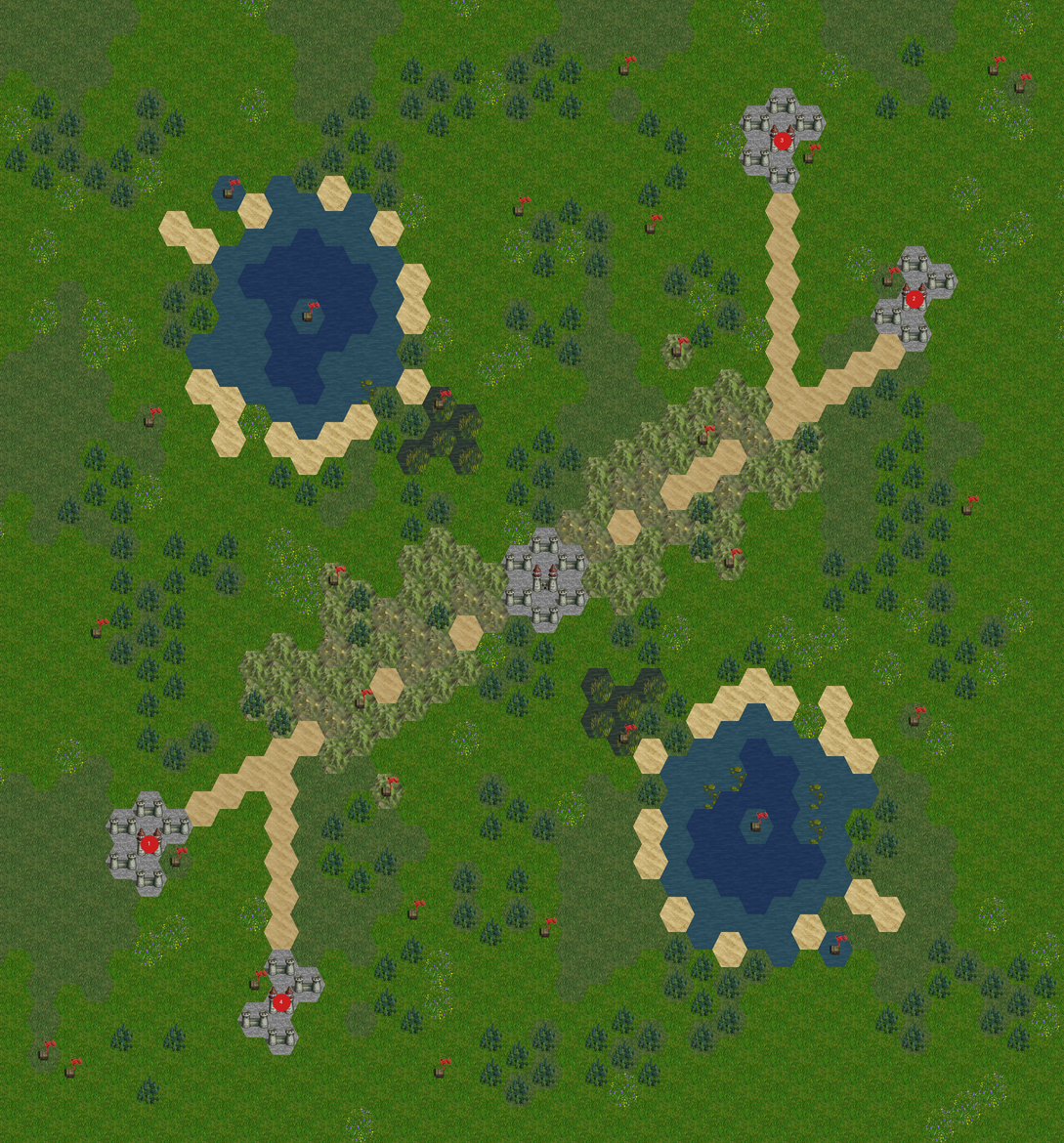
- Start Wesnoth, open Multiplayer, create a game and pick zzzTDW Twin Lakes. Other players need the add-on too.
Windows and Mac
- Windows:
Documents\OpenRA\maps\ra\<version>\ (WW3: Documents\OpenRA\maps\ww3mod\)
- Mac:
~/Library/Application Support/OpenRA/maps/ra/<version>/ (WW3: .../OpenRA/maps/ww3mod/)
Then play
Restart OpenRA, open Skirmish or Multiplayer, and pick the map from the list. Every map here is named zzzTDW something, so they sit together at the bottom of the list. Type zzzTDW in the map search to show only these. In multiplayer only the host needs the file: everyone else downloads it automatically when they join.